
Work in Motriz
Work with code projects
Add repositories or folders, use the dashboard, manage tasks, and integrate parallel work.
Add a repository or folder
Choose Add project from the sidebar. Motriz scans the repository roots shown in Settings → About, separates GitHub repositories from other Git repositories, and marks repositories with uncommitted changes.
If the folder is not discovered, paste its path directly. Direct paths can point at any existing directory; they do not need a .git folder.
Motriz skips virtual-machine and container mounts during discovery. If a valid local folder is outside the configured roots, paste the path instead of expanding a broad scan.
Use the project dashboard
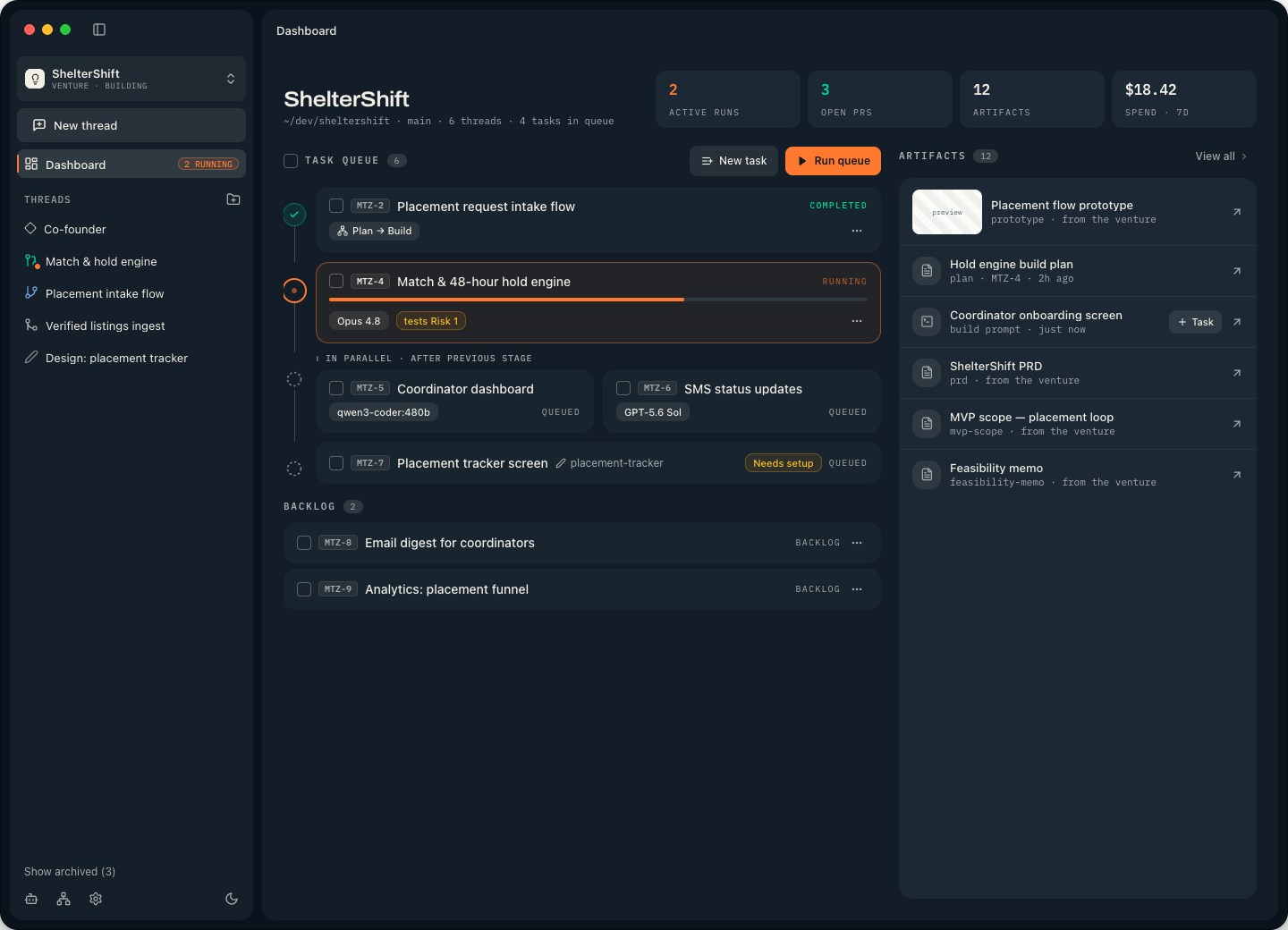
The dashboard is the operational home for a code project. Its summary combines:
- Recent threads and their current activity.
- Active runs.
- Open GitHub pull requests when the project has a supported remote.
- Project artifacts.
- Seven-day spend calculated from provider-reported usage.
- The durable task queue and backlog.
Create work in the right place
| Need | Use | Why |
|---|---|---|
| A one-off implementation or fix | Build thread | Fastest path from a scoped request to code and validation. |
| Research or discussion without repository edits | Chat thread | Keeps the repository read-only while retaining web and artifact capabilities. |
| A feature still missing product clarity | Product Design thread | Creates specs, prototypes, and a build prompt before implementation. |
| A durable backlog item | Dashboard task | Can be assigned, queued, retried, and sequenced with other work. |
| Independent items in a Git repository that can run together | Parallel task stage | Each task gets an isolated Git worktree and branch. Non-Git folders can run tasks sequentially, but cannot create parallel worktree stages. |
Run a single agent
In a Build thread, leave the composer in Single agent mode. Choose:
- A configured model.
- A reasoning effort supported by that provider and model.
- The Fast service tier when the selected provider and model expose it.
- A role such as Coder, Planner, Heavy Planner, Reviewer, or System Architect.
The default Coder role is appropriate for most implementation tasks. Select a Planner when you want an implementation plan without immediately changing code.
Use project context well
Motriz supplies the selected folder as the run workspace. The best prompts still state the observable outcome, constraints, and validation. Mention specific files or failures when known, but let the agent inspect the surrounding system before changing it.
You can attach up to ten supported files, attach existing project artifacts, or dictate the prompt with a local voice model.
Review the run
The thread shows the conversation and a structured run timeline. Open the workspace to inspect:
- Files for the current directory tree and file contents.
- Changes for modifications associated with the thread and its runs.
- Artifacts for durable outputs produced anywhere in the project.
Use the Git and GitHub control for branch status, commits, pushes, pulls, and pull requests. Git mutations are paused while an agent is actively running in that repository.
Parallel task work
Select two or more queueable tasks and choose Run in parallel or Queue in parallel. Motriz creates an isolated worktree for each task so agents do not write into the same checkout.
When every task in a parallel stage completes, the queue pauses. Open each task thread and integrate its branch into the project checkout. Resume the queue only after the branches needed by downstream tasks are integrated.
Motriz does not silently merge parallel branches. Resolve conflicts and review the combined state in the main checkout before dependent tasks continue.
Remove a project
Removing a code project clears its Motriz history and configuration. The folder and every file on disk remain untouched. This is useful when you want to stop tracking a project without deleting the repository itself.