Work in Motriz
Workspace and artifacts
Inspect files and diffs, preview artifacts, and work with venture documents and evidence.
Open and position the workspace
The workspace can dock beside a thread, hide when you need more conversation space, or expand into the main area for focused inspection. Available tabs follow the project and venture stage rather than showing empty tools.
Browse Files
The Files tab shows the selected repository or folder tree and opens supported text files in the viewer. Use it to inspect current source without leaving the thread. File icons follow the Colored or Monochrome preference in Settings → Appearance.
Review Changes
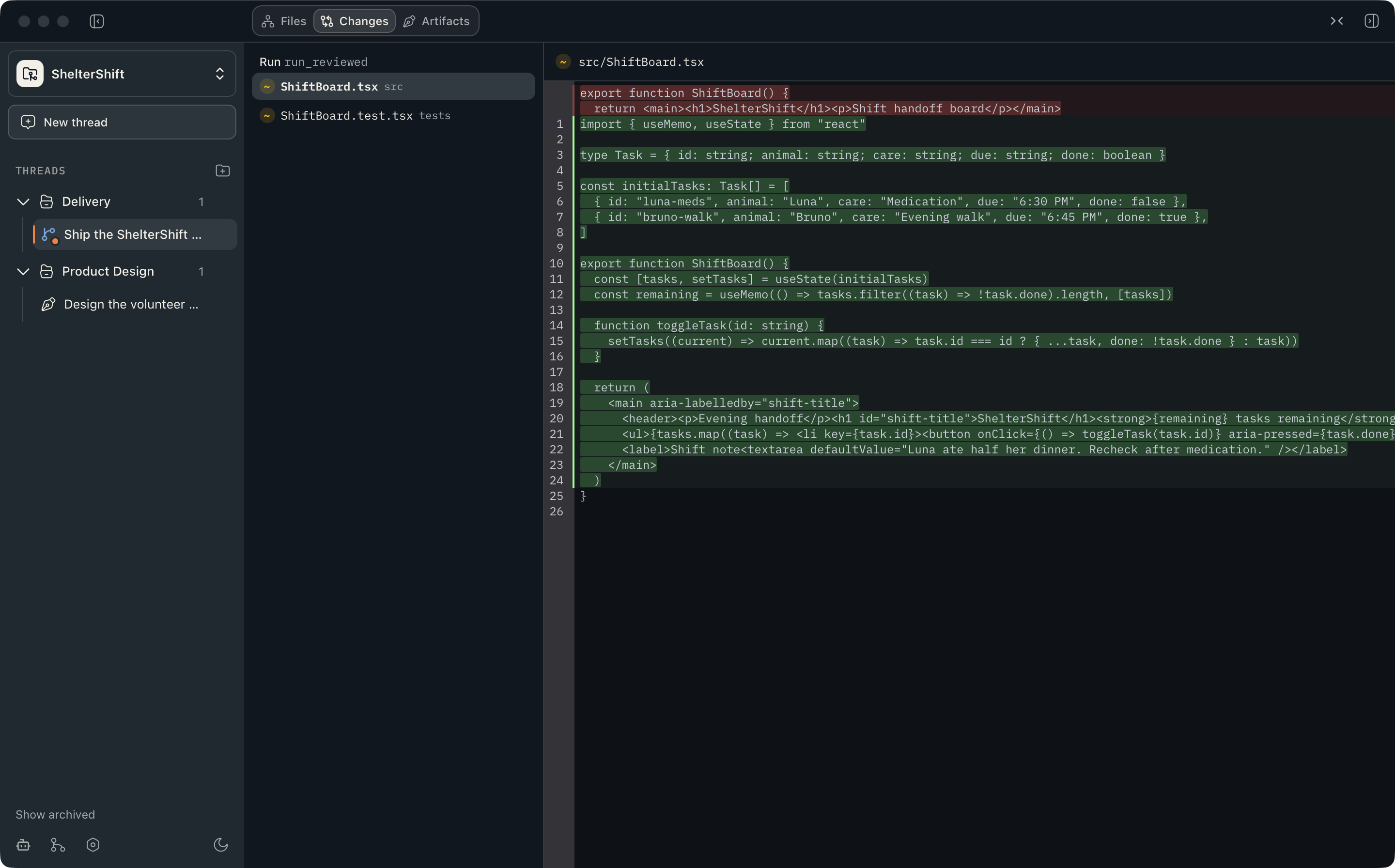
The Changes tab groups the working-tree modifications associated with thread runs and lets you inspect diffs. Use it before committing, when reviewing a completed agent, and when deciding whether a failed run left useful partial work.
Understand artifacts
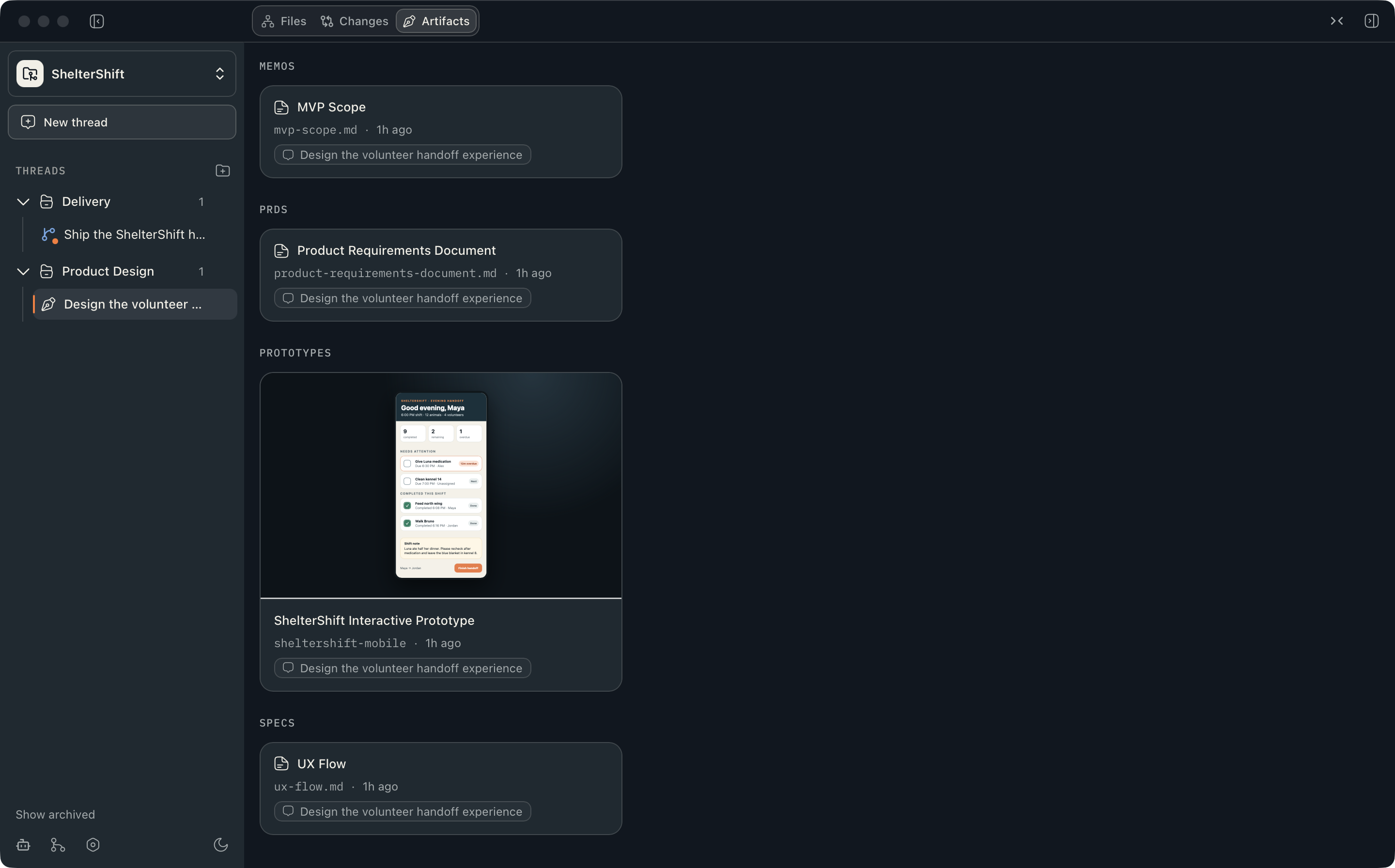
Artifacts are durable outputs stored in Motriz app data with project, thread, run, and version provenance. Supported kinds include:
- Specifications, PRDs, briefs, memos, plans, research, and other documents.
- Reusable prompts and build handoffs.
- Images, links, and arbitrary files.
- High-fidelity HTML/CSS prototypes with multiple screens.
The artifact gallery separates work from the current thread from earlier project artifacts. It also keeps version history so a revised output does not erase its prior state.
Preview and act on artifacts
| Artifact | Available actions |
|---|---|
| Document, prompt, or spec | Read, copy, attach to another prompt, start a Build thread when appropriate, or delete. |
| Image | Preview in the workspace, attach as context, or reveal the stored file. |
| Prototype | Open the screen gallery, use the native preview browser, pop out a preview window, and review screen notes. |
| Arbitrary file | Reveal it in Finder when Motriz does not have a native preview. |
| Build prompt | Start a Build thread or promote it into a durable project task. |
Use the Design workspace
Product Design prototypes are multi-screen artifact sets rather than screenshots pasted into chat. Each screen can have a live thumbnail, a native HTML preview, pinned review notes, replies, and resolution state. The prototype becomes a visual and interaction reference for implementation.
Use venture Journey, Documents, and Evidence
- Journey shows current, completed, upcoming, and looped phases.
- Documents holds canonical venture outputs such as the idea brief, market memo, validation roadmap, strategy, MVP scope, PRD, UX flow, and feasibility memo.
- Evidence holds observations and experiment results connected to venture assumptions.
After a venture starts building, these tabs remain available next to Files and Changes. A stopped venture keeps Artifacts, Documents, and Evidence so the decision remains auditable.
Attach artifacts to future work
Use the artifact picker in a new or existing thread. This is preferable to copy-pasting long documents into the composer: Motriz preserves the artifact identity and sends the selected content as explicit project context.
Delete with care
Artifact deletion removes the durable Motriz output and is blocked when active work would make the operation unsafe. Deleting an artifact does not revert repository changes that may already have been made from its build prompt.